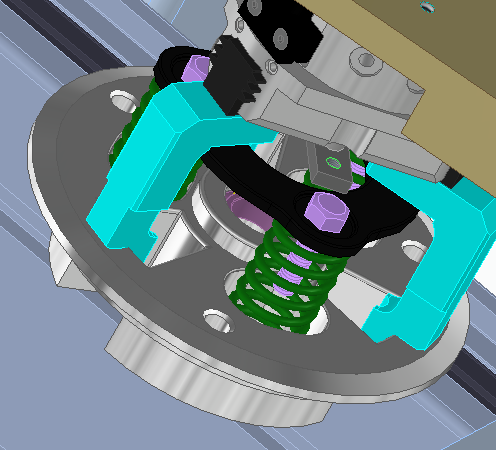
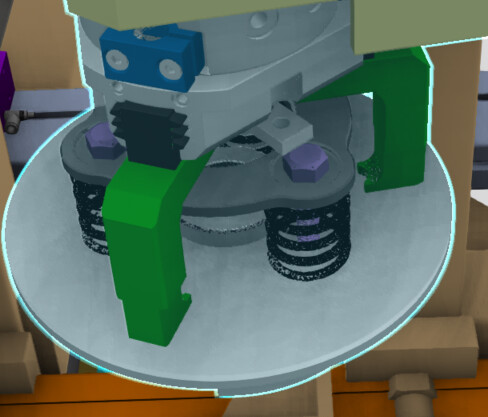
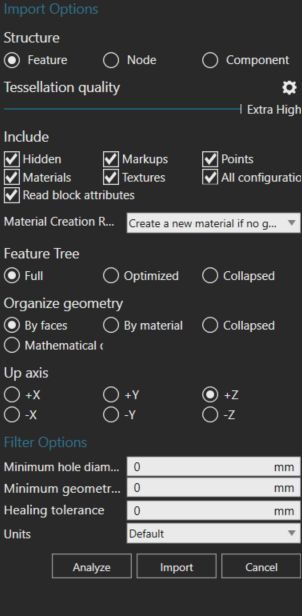
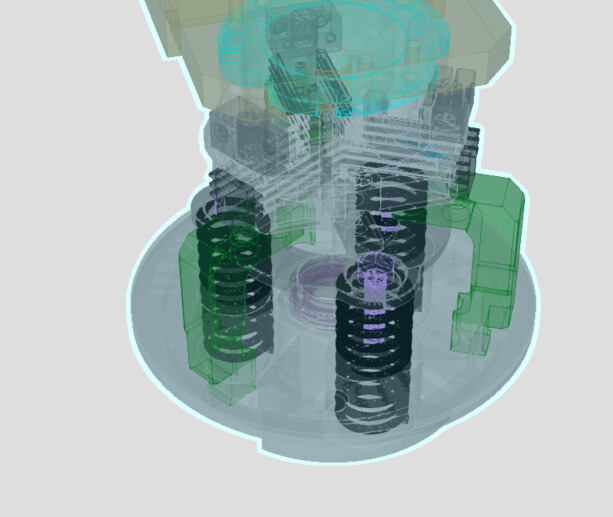
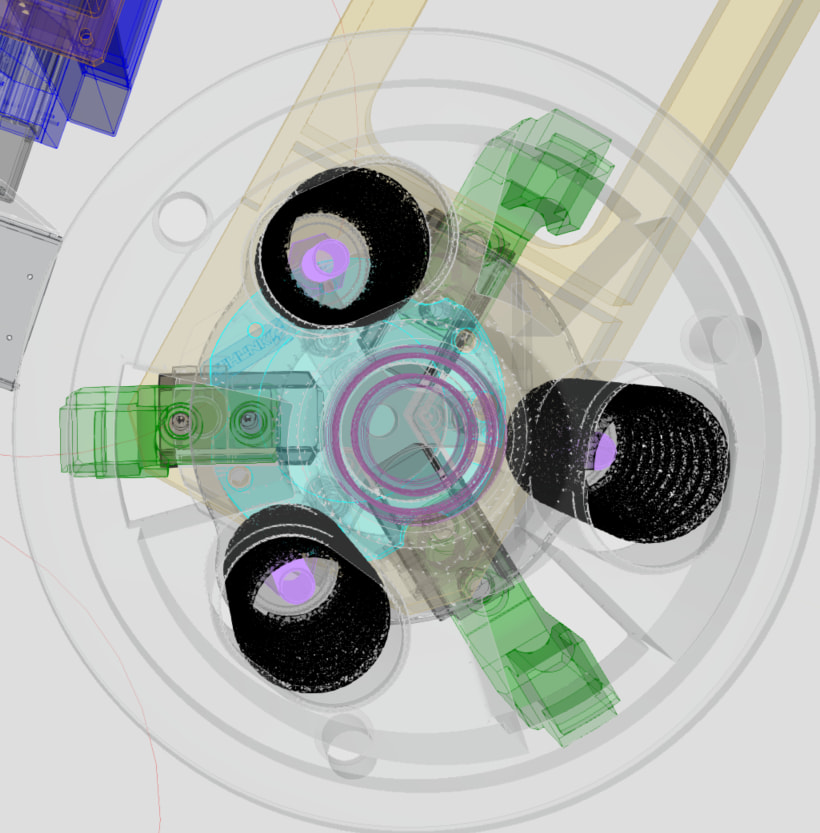
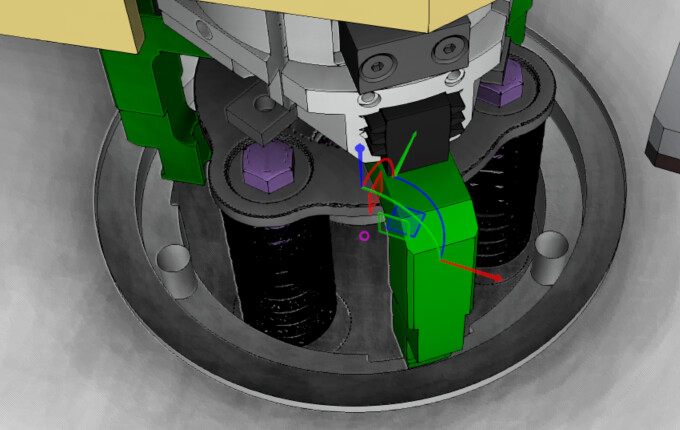
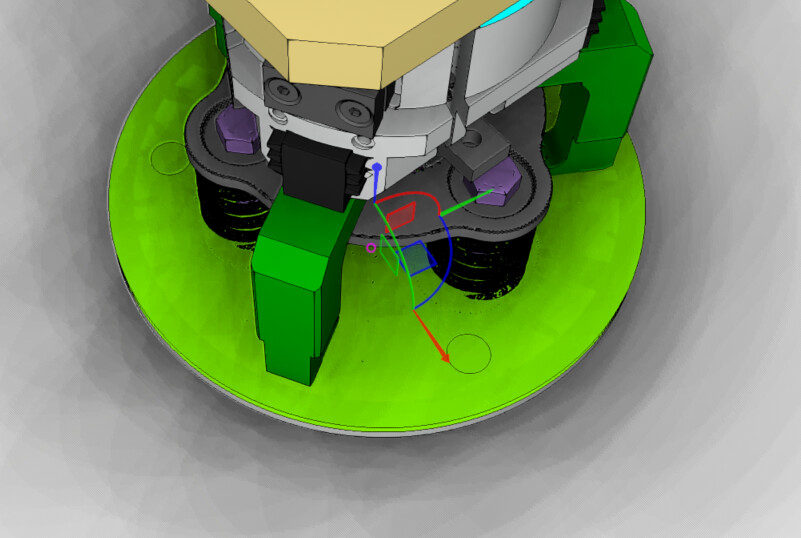
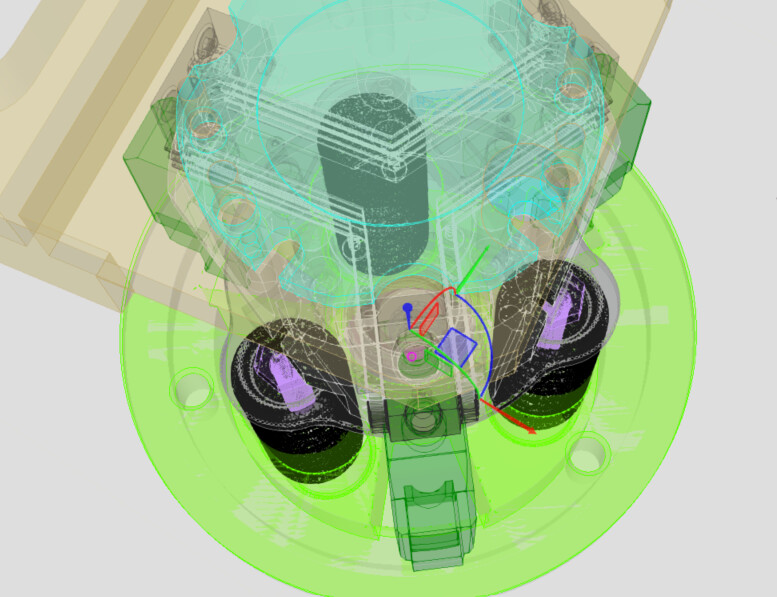
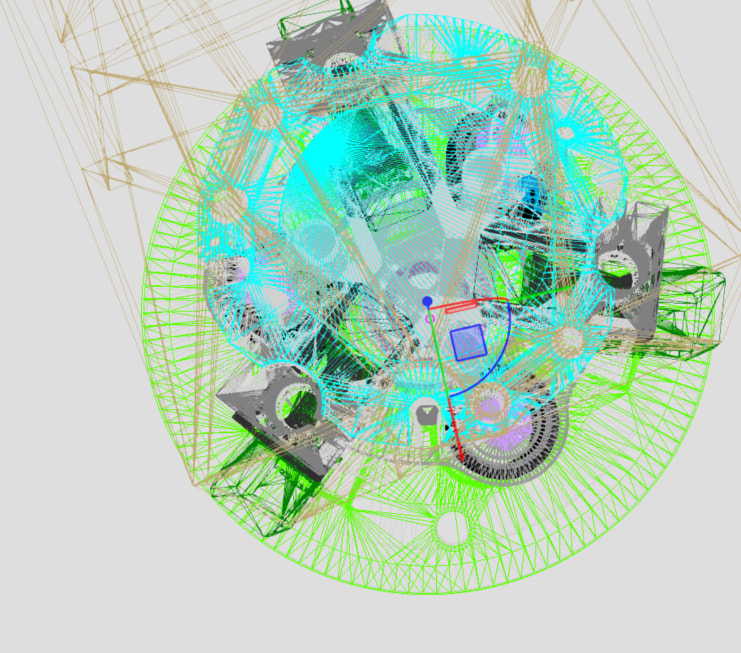
I am loading a geometry in visual component. The geometry is missing many features. I am attaching geometry photo how it looks like in Solid Edge and Visual Component. I am also attaching the Import model properties which i have selected before importing. Please guide how to load this geometry properly and same as solid edge.
Seems that it is missing the holes mostly? Could be that somehow there is just solid geometry without the holes in addition to the geometry with holes and you just can’t see the holes.
The same geometry when i open in solid edge shows all features (1st image attached) and same when i open in VC it show without these features. I have done drag n drop then also same result. and when importing through import model option then also same result.
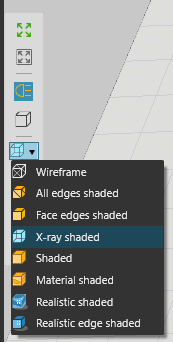
Well, everything is transparent under X-ray or wireframe render mode. That’s why you can see them. You don’t have plate or flat cylinder in CAD software? Can you upload the CAD file? Or send it to support@visualcomponents.com