I’m just learning VC, so this is a beginner question.
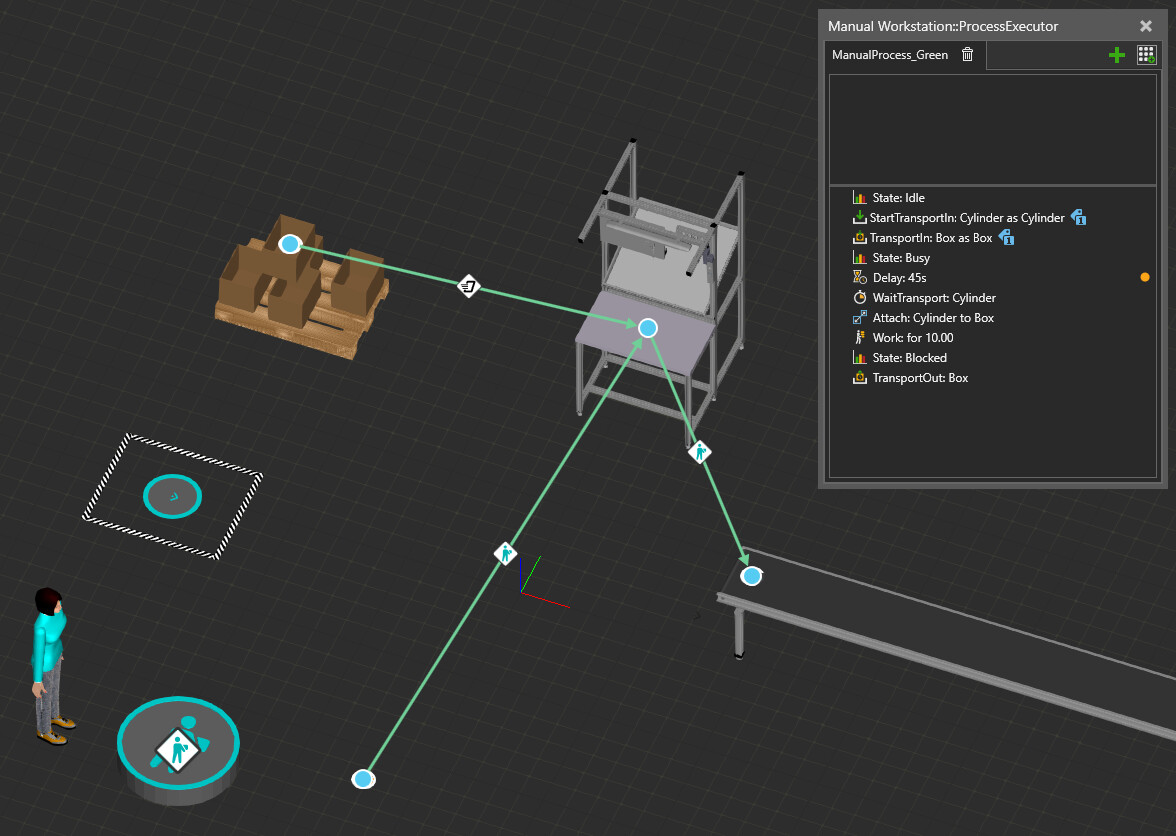
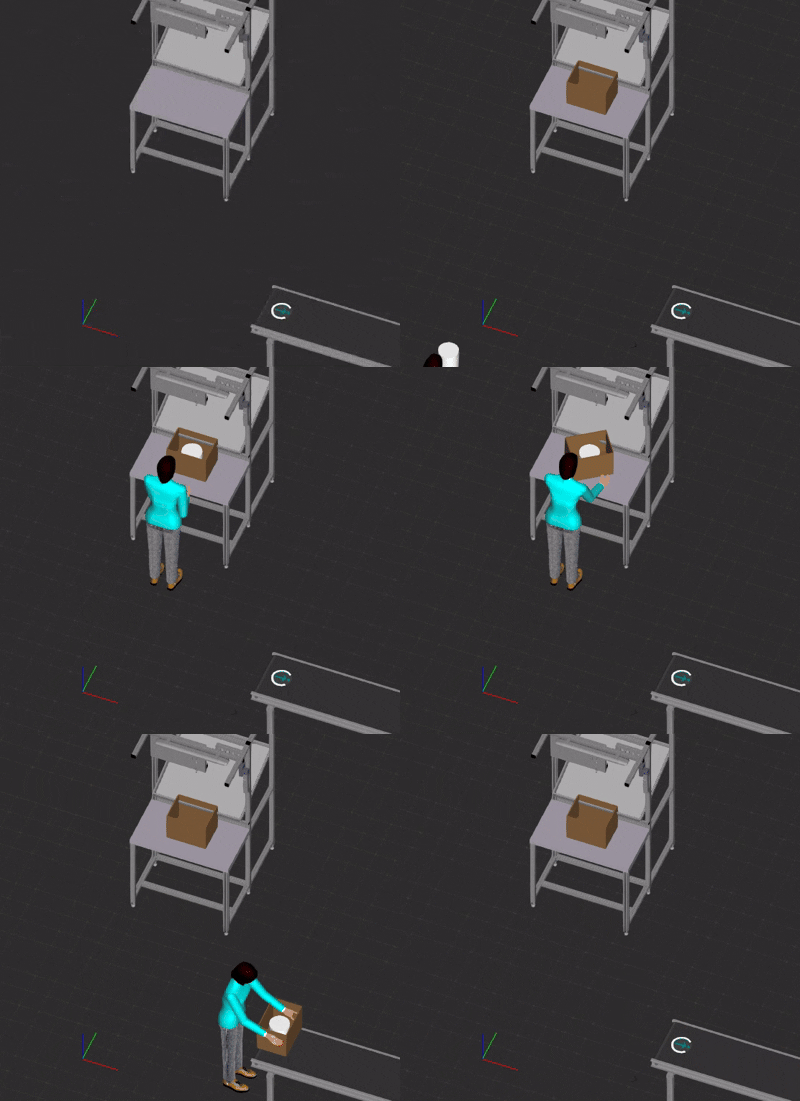
I created this very basic workflow, in order to test out WaitTransport. Box and cylinder arrive at the workstation, are attached and then put on the conveyor.
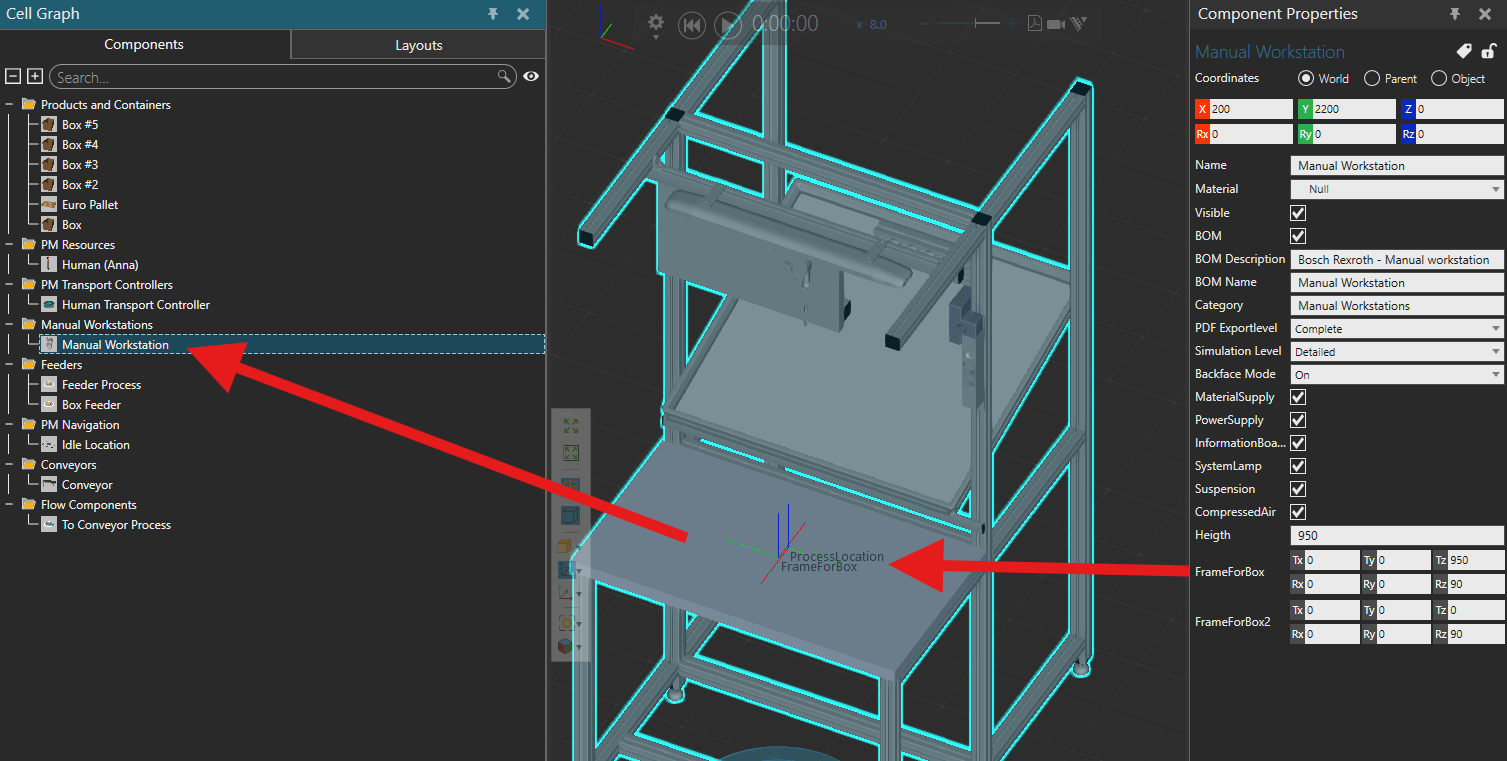
Otherwise you can another create another Frame on the table where the box should be, but rotated of 180° on Rz and select it in your TransportIn. That way the box will have the same orientation on the Table and on the Conveyor, and the operator won’t need to rotate it.
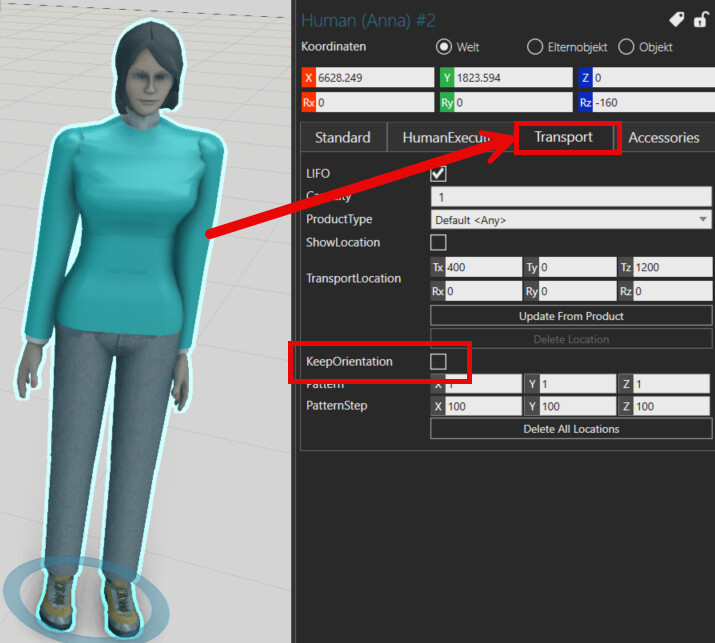
if you enable the property “KeepOrientation” in the “Transport” tab in the operators properties, that should prevent her to rotate the product
Thanks! Wasn’t aware of this property - this works.
Otherwise you can another create another Frame on the table where the box should be, but rotated of 180° on Rz and select it in your TransportIn.
Yes, this also fixes it. I was able to create a new frame in the workstation component and select it in the TransportIn. The box now flips itself as it travels from the feeder process to the workstation. Some followup questions:
1) Is there an easy way to snap frames into place? At the moment the only possibility I found was inserting the coordinates.
I was wondering if I can have the product already exit from the feeder with the right orientation.
I tried editing the ResourceOffset Rz → 180 in the feeder component, but this did not seem to affect anything. This is unrelated?
I was again able to create a new rotated frame in the feeder process and use it in the TransportIn statement.
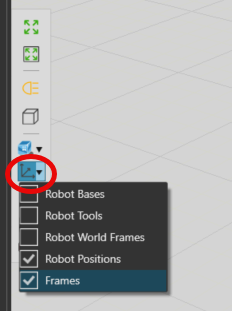
In general, is there a good way to see all frames? Do they only show up under component properties? Wondering why they don’t show up in the cell graph for example.
Thanks for the help! Just going further into it here to understand better.
You can move, snap or align frames easily in the Modeling tab if you have VC professional or above.
The frames are not distinct components but part of components, that’s why they are not in the cell graph.
You can display the frames by clicking on the Frame icon on the left side of the 3D world (blue means enabled) and select which type of frames to display.
Ok - I was using the VC Essentials for the moment, so I wasn’t able to see the whole modeling section, but thanks for clarifying on how frames work! I should be upgrading to VC Professional soon, so will check it out.